AdriaHost Mail MCP allows you to use AI tools to search your connected mailbox and view message details. This guide explains how to connect using the Codex desktop app and Claude Code.
MCP server address:
https://mcp.adriahost.com/mcp
Connecting through the Codex desktop app
-
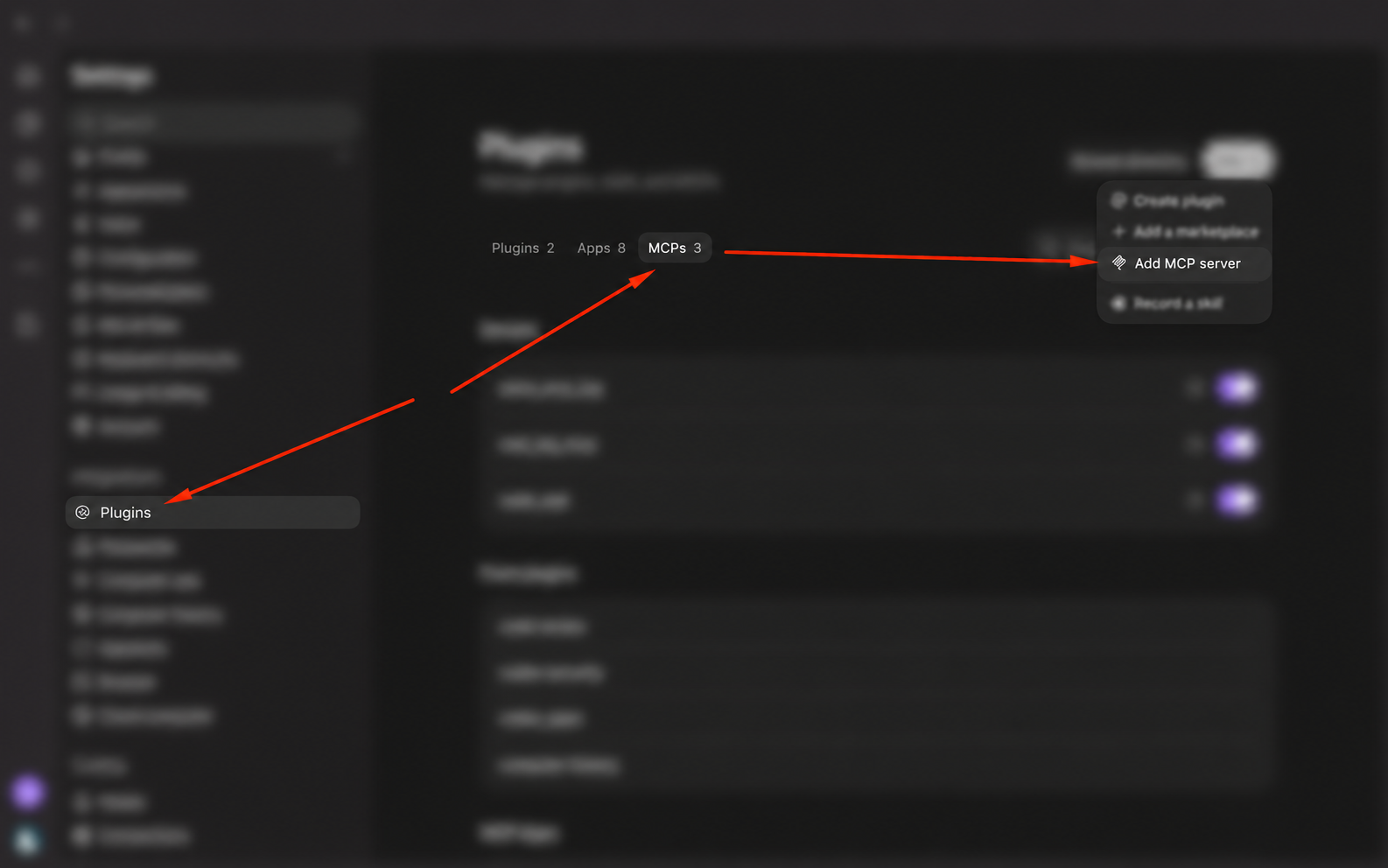
Open the Codex desktop app and go to Settings → MCP servers → Add server.
-
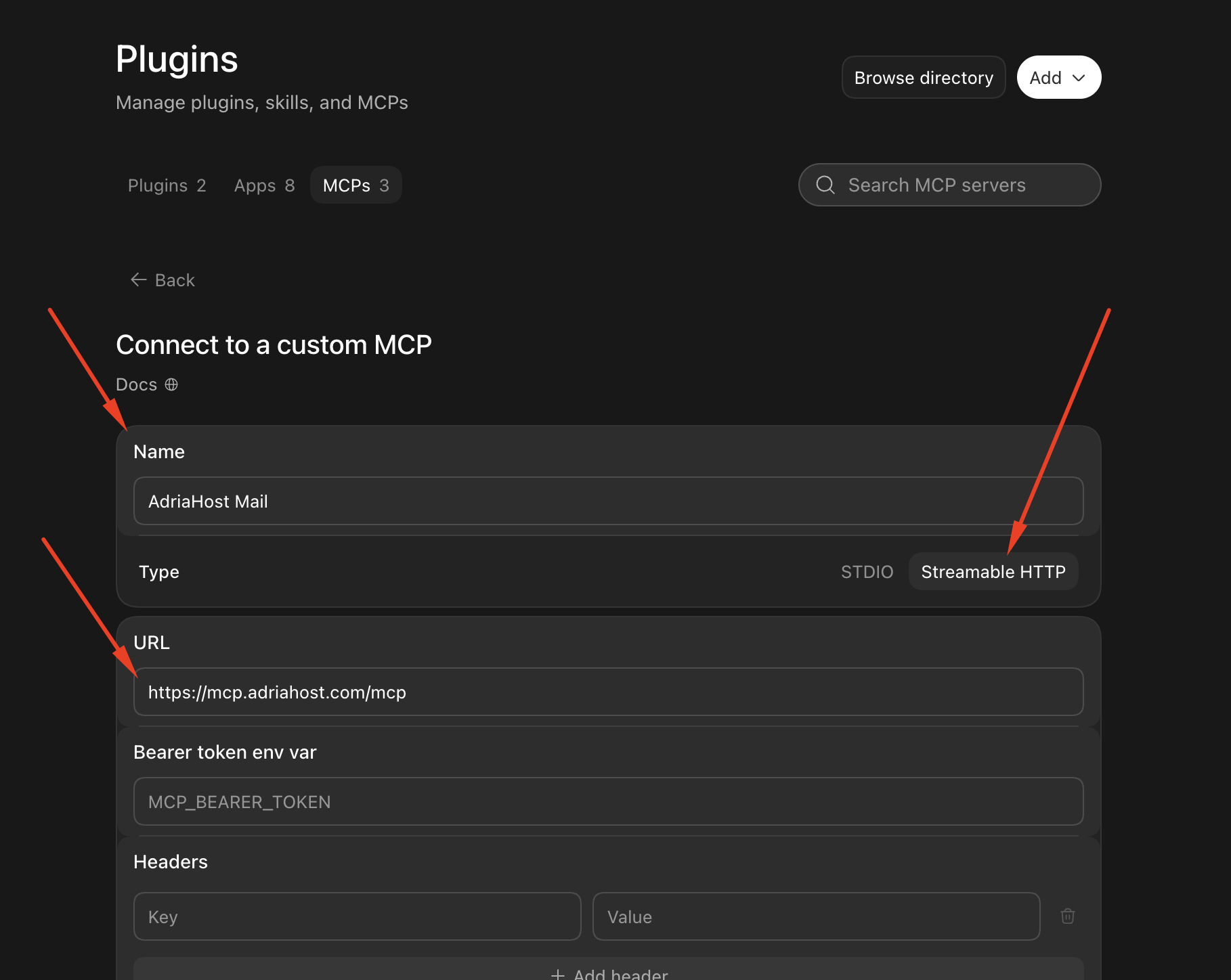
Enter the following details:
- Name: AdriaHost Mail
- Transport: Streamable HTTP
- Server URL:
https://mcp.adriahost.com/mcp
-
Save the connection. If prompted, select Restart.
-
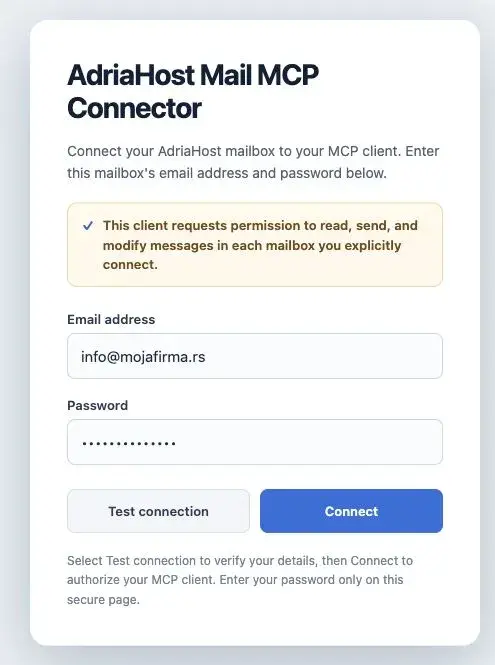
After restarting, click Authenticate. The AdriaHost mailbox connection page will open in your browser.
-
Enter your mailbox email address and password, then click Test connection.
-
Once the connection test is successful, click Connect.
-
Return to Codex and ask it to check your connected mailbox.
For your first check, you can use this prompt:
Find the five most recent messages and show their senders and subject lines.
Connecting through Claude Code
If you already use Claude Code in your terminal, add the AdriaHost Mail MCP server using the following command:
claude mcp add --transport http adriahost-mail https://mcp.adriahost.com/mcpThis command only adds the MCP connection configuration and does not send any emails.
Then:
- Open Claude Code.
- Enter the
/mcpcommand. - Select AdriaHost Mail.
- Start the authentication process.
- Enter your mailbox credentials in the browser window that opens.
- Click Test connection, then click Connect once the test is successful.
Once connected, you can use a prompt such as:
Find the five most recent messages and show their senders and subject lines.
Troubleshooting connection issues
If automatic mailbox detection fails, contact AdriaHost support and ask for the exact mail server hostname to enter under Advanced settings.
Also check the following:
- that you entered your full email address;
- that your mailbox password is correct;
- that you entered the MCP server address correctly;
- that you restarted Codex when prompted;
- that you completed authentication in the browser window.
Security notice
Enter your mailbox credentials only on the AdriaHost connection page. Do not enter your password in a conversation with an AI assistant, terminal commands, or prompt text.